
Bulk orders or B2B ordersUpdated 2 months ago
Every once in a while you will get contacted by someone who would like to place a bulk order or a business purchase
In this case, it is important to gather as much information as possible, so we can make an offer for their needs.
First of all, we need to determine if the order is a particular bulk order or a B2B order.
You can use the following template for this:
Mail template to use => Bulk order request
If it is a particular Bulk order (so not a business wanting to buy multiple items), you can continue with Scenario 1, for B2B orders you can scroll down to Scenario 2:
Scenario 1:
Particular Bulk order:
- Requests from 5 to 15 products, we can offer 20%
- Requests from +15 products we can offer 30% (this is the highest discount we'll offer)
⚠️ Clarify sets vs. pieces
(Customers may say “12 mini paintings” but mean 2 sets of 6 (not 12 sets). Confirm pieces vs. sets.
Step 1: Inform on what we can offer
You can send the following template to inform what we can offer:
Mail template to use => Bulk order request 2
Keep in mind - these discounts cannot be applied during sales periods - tag the customer service manager in an internal note when a bulk order is requested during sales periods.
Step 2: Create the discount
The discounts will be made in Shopify, not in Gorgias, as they are a bit more specific.
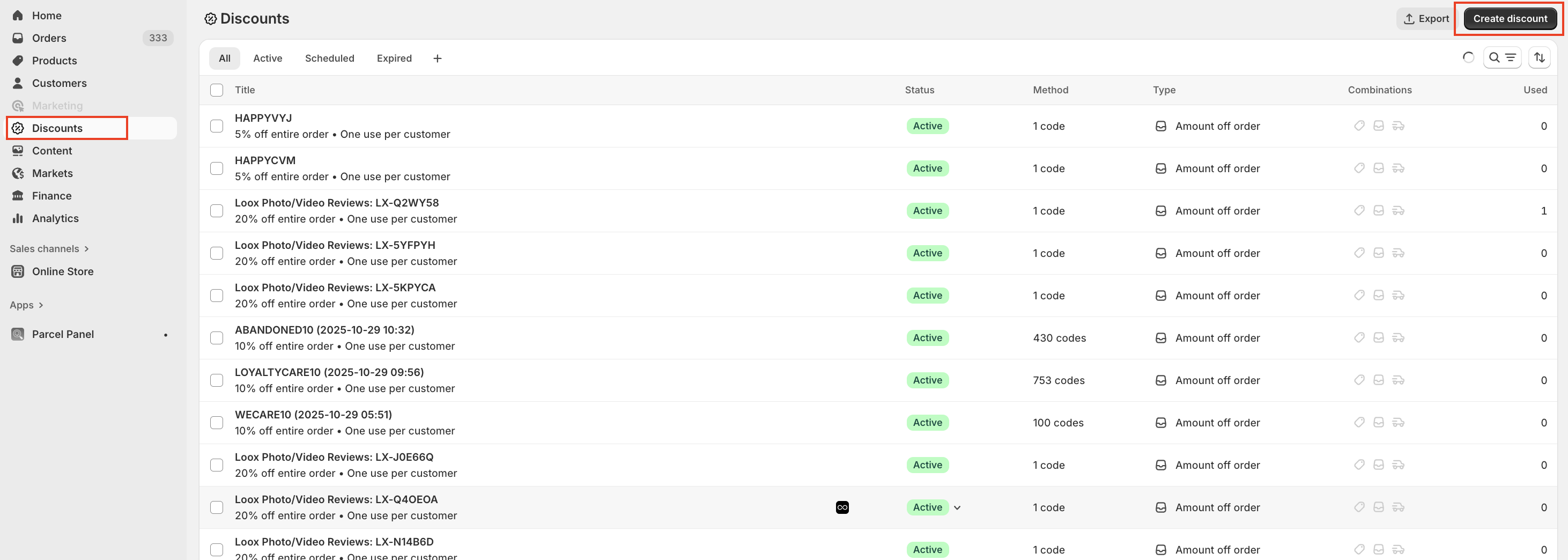
You will go to shopify and select in the right side bar 'discounts' and select in the right corner ' Create discount'.
You will get the following pop up and select 'Amount of order'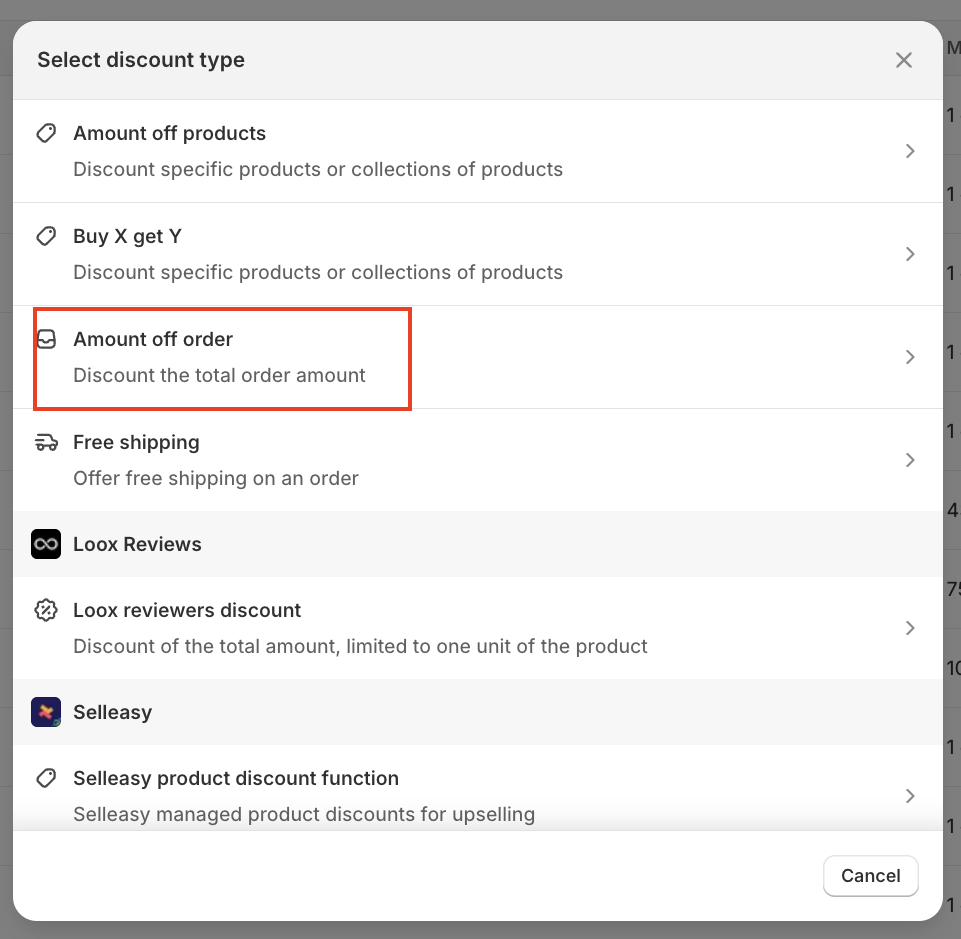
Then you will adjust the following things:
1 - you can select 'generate random code' to get a random discountcode
2 - add the amount of discount depending on the amount of products they want to buy (so 20% or 30%)
3 - Minimum amount of products (so Minimum 5 or 15 depending on the customers wishes)
4 - Limit number of times the discount can be used you will set to only 1, so the discount cannot be used multiple times.
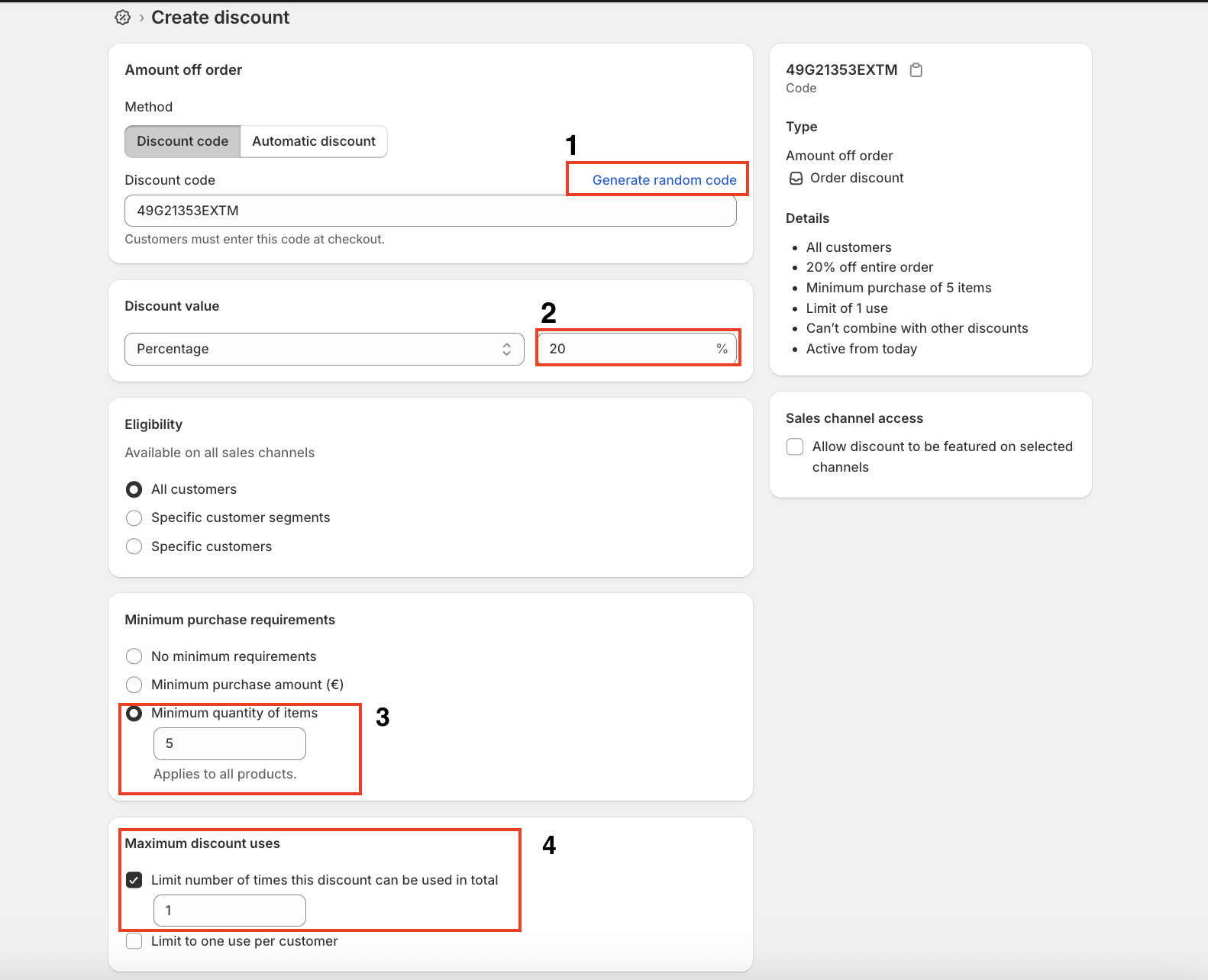
Once the discount is created you can share the code with the customer so they can place the bulk order.
Scenario 2:
Procedure for B2B Orders in Our Shop
Step 1: Initial Customer Contact When a customer expresses interest in placing a B2B order, the Customer Support Agent should:
- Ask for details of what the customer would like to order (specific products, quantities, etc.).
- Gather all relevant information:
- Company name, company registration number or company number
- Full adress
- Name of contact person
Important Notes to Share with the Customer if needed:
- VAT Invoices: Inform the customer that we do not offer VAT invoices as we do not charge VAT.
- Payment Terms: Clarify that the only payment method for B2B orders is bank transfer, and the order will only be shipped after full payment is received.
- No Monthly Orders or Custom Shipping Requests: Explain that we do not offer monthly or subscription-based orders. Customers are free to buy in bulk but we do not accommodate custom shipping requests based on their customer orders (e.g., if they want to resell our products).
Here is a template you can use:
Hi,
Thank you for your interest and inquiry!
We are pleased to offer customized solutions for businesses looking to collaborate with us. We understand that each company has different needs, so we will create a special price just for you based on the products and sizes you are requesting.
To create an accurate invoice, we need the following information from you:
- Company name
- Organization number or company registration number
- Address and phone number of contact person
- Contact person's name
How does it work?
- Send your order list: Let us know which products you would like to order by sending us a list.
- Receive a quote: We will calculate the special price and send you a quote for the entire order.
- Pay the quote: After the quote has been approved, you can easily pay via our secure payment methods.
- Delivery: We will ship your order within 5-10 days after receiving payment.
We look forward to collaborating with you and hope to offer a solution that meets your needs.
Step 2: Clarifying Questions
- If the customer has a request or question that the agent does not fully understand, ask clarifying questions to gain a full understanding before transferring the case.
- IF in any case customer asks about other payment options ask about this to Katja so she can discuss this with Lynn.
Step 3: Transfer to Katja!!
- Once the details of the order are gathered and fully understood, transfer the case to Katja by tagging her in an internal note and provide all gathered info and explain what it is about, so she can further handle the case.
- Inform the Customer: Let the customer know that they will be contacted again within a few business days.
Steps for Katja:
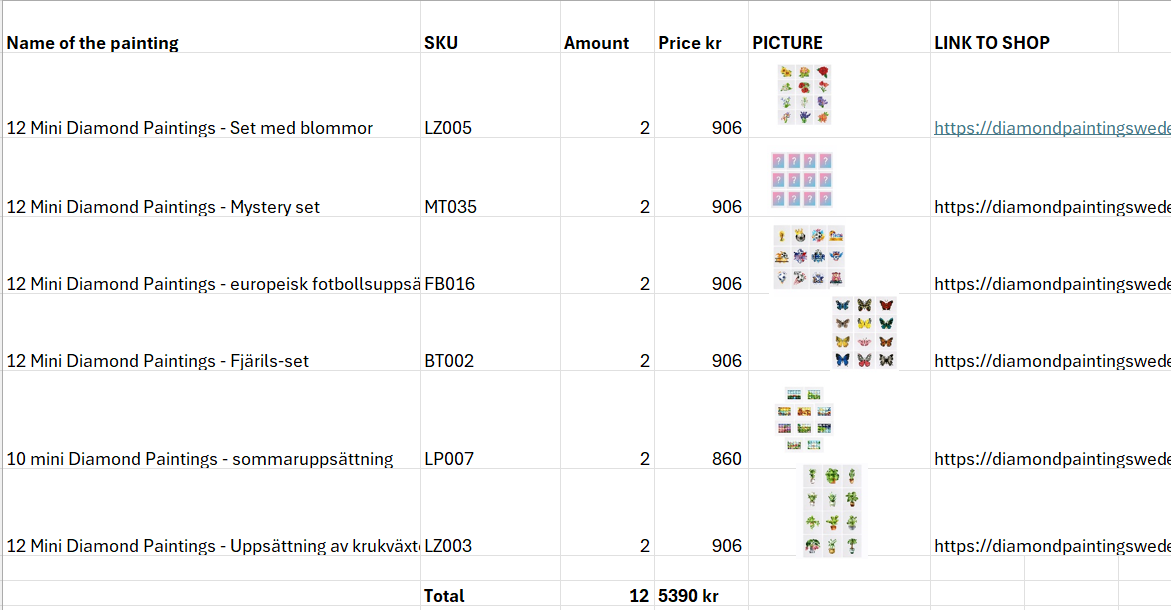
Step 4: Prepare an Excel File
- Collect Information to Excel:
- SKU: Find the SKU from Shopify for each product.
- Product: Locate the corresponding product in the shop.
- Picture: Add a picture of each product.
- Product URL: Include the URL for each product.
Step 5: Send Email to SMT Group
- Once all details are confirmed, send an email to [email protected] with the following information:
- Customer’s contact details
- Detailed list of requested products and quantities
- Any additional relevant information from the customer inquiry
Step 6: Send Invoice to Customer
- Lynn will prepare the invoice for the customer.
- Once Lynn has prepared the invoice, forward it to the customer for their approval.
Step 7: Request Payment
- After receiving the customer’s confirmation, request the bank transfer payment for the order.
Step 8: Payment verification
- Check in with Lynn to see if the payment was received
Step 9: Place the order
- After receiving payment confirmation from Lynn or OK from Lynn to ship the order, send the Excel file via internal note to the supplier with all relevant shipping details, so they can process the order and arrange shipment.
Step 10: Update customer
- Inform the customer that the order has been shipped and provide with the tracking details (You can ask the customer service agent to contact the customer about this in case you don't trust translations)