
Team Guidelines – Workflow, Scheduling & Ticket ManagementUpdated 2 months ago
By following these guidelines, we improve collaboration, maintain clear communication, and deliver consistently high-quality service to our customers. This document is the single source of truth for how we work day to day.
1. Availability & Days Off
Schedule submission
Enter your availability in the shared schedule no later than the 20th of each month (latest: last week of the previous month).
Shared schedule (Google Sheets):https://docs.google.com/spreadsheets/d/1NZ0m3XBu3983McyRhGv_8HcZe2324DpQTZMrMERea3I/edit?gid=669170734#gid=669170734
How to mark your schedule
Green: Days you are working
Bonus: if you know your hours, mark only the working hours in green
Red: Days you are not working
Keeping this up to date is critical for correct task assignment and coverage.
Changes to days off
If your days off change, inform your Customer Service Manager immediately so the schedule can be adjusted.
Sick leave
Inform your Customer Service Manager as soon as possible so tasks can be reassigned.
If you don’t have access to Slack, you may notify her via WhatsApp.
Holiday Leave
Capacity Limit: No more than 2 people are allowed to have the same day off.
Approval Policy: First come, first served.
2. CS Schedule Task Tracker (Monthly Process)
Purpose
The CS Schedule Task Tracker ensures:
Clear daily ownership
Better workload planning
Fewer follow-ups and interruptions
When this happens
Around the 20th of each month
Tasks for the upcoming period are assigned in the CS Schedule Task Tracker (tab at the top of this Slack channel)
This is your cue to review your tasks and sync your calendar.
Where to find your tasks
Open the CS Schedule Task Tracker from the tab at the top of this Slack channel
The tracker opens in Slack Canvas as a table
This Canvas is the single source of truth for all daily and recurring CS tasks
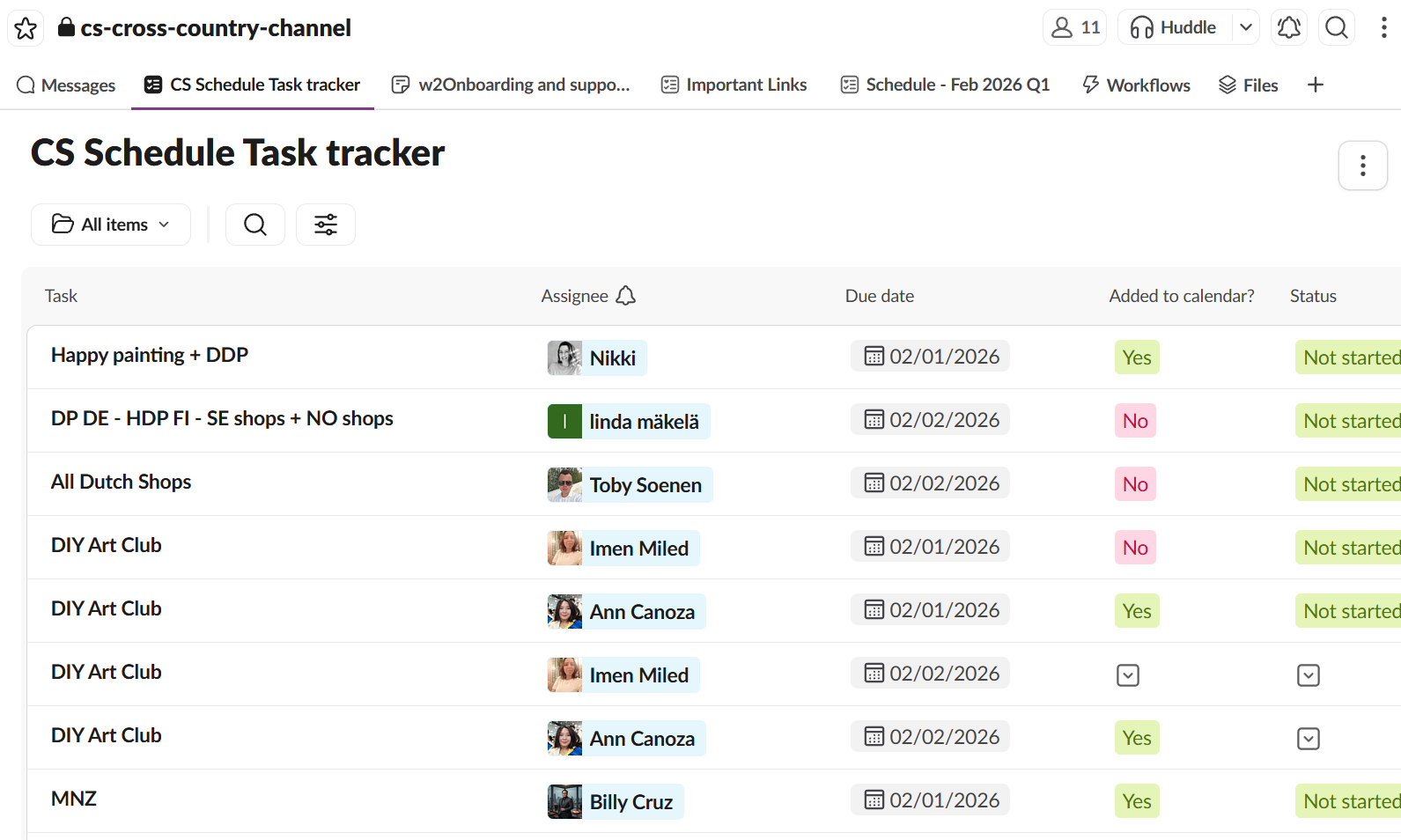
How the tracker works
Task
Describes what needs to be done (shop coverage, campaigns, time-sensitive checks, etc.)
Assignee
Shows who owns the task
If your name is listed, the task is yours
Due Date
When the task must be completed
Plan your time accordingly and avoid last-minute work
Added to calendar?
Indicates whether the task is in your Google Calendar
Yes = no action needed
No = action required
Status (mandatory)
Keep this updated so progress is visible without follow-ups
Not Started – default
In Progress – once you begin
Done – once completed
Accurate statuses help the whole team stay aligned.
3. Action Required: Google Calendar Sync
All assigned tasks must be added to your calendar to prevent missed deadlines.
Option 1: Automatic sync (recommended)
Open the CS Schedule Task Tracker in Slack
Click the three dots ( … ) or Integrations / Automations (top-right)
Select Manage Automations
Enable the Google Calendar connection
Set the automation:
“When an item is assigned to me, add an event to my Google Calendar.”
Future tasks will be added automatically.
Option 2: Manual time-blocking
Review your assigned tasks
Block time in your Google Calendar
Make sure you realistically reserve enough time to complete them
Final confirmation
Once you have:
Checked your assigned tasks
Updated or synced your calendar
👉 React to the announcement post in Slack to confirm completion.
4. Workload Management
Keep your Customer Service Manager informed if your workload feels too high or too low
Early communication allows tasks to be rebalanced before issues arise
5. Agent-Specific Responsibilities
| Agents | Responsibilities |
|---|---|
| Katja | - Customer service Finland + DP DE
- Email marketing of dp shops -Disputes Klarna/Paypal - Internal notes about refunds - Other cs tasks - Adtraction invoice every month - Every quarter artist invoices - Cs management tasks |
| Ann | Customer Service Diy artclub day time (After Europe 5PM Time)
|
| Georgina | - Customer service Dutch market (Myth of Asia, Diamond painting expert, SON)
- Happy painting and De diamond painter on days toby is off |
| Toby | - Customer service Dutch market (Happy painting + De Diamond painter)
|
| Linda | - Customer Service Diamond painting Welt + MNZ
- SE/FI mails on days Katja is not here |
| Nikki | Customer Service Diy artclub day time (before 5PM)
|
| Bibian | - Flexworker |
| Imen | Flexworker - DIY Art Club Eng Market |
| Billy | Flexworker - MNZ |
6. Ticket Handling Guidelines
Maintaining our 20‑hour response time target depends on consistent ticket handling.
Snoozed tickets
Set the reopen date to a day you are available
Add an internal note if another agent may not handle the case
Never leave tickets open
Always snooze tickets when waiting for customer or supplier input
If no update is available when it reopens, follow up and snooze again with a note
Exclusive handling
If you want to handle a ticket personally, add an internal note stating this clearly
Assigning tickets
Only assign tickets you can handle immediately
Avoid assigning tickets in the morning and completing them late in the day
Supplier communication
If you contact a supplier, you remain responsible for the ticket
This applies even if it’s not your scheduled shop day
Procedures & escalation
Use the knowledge base at all times
Ask your Customer Service Manager if you’re unsure
Escalate complicated cases promptly
Addressing mistakes
Small mistakes: politely inform your colleague
Major mistakes: inform your Customer Service Manager for review and coaching
Before logging off
Complete, reassign, or unassign all tickets so another agent can take over
7. Urgent Folder Handling
Tickets in the Urgent folder have top priority
First available agent for the market must handle them, regardless of shop
These often involve cancellations
Always check the Urgent folder at the start of your shift
8. Translation Guidelines
Google Translate extension
Install: Google Translate Chrome Extension
Set your preferred language and pin it for easy access
Translating a full page
Click the extension → Translate this page
Translate back to the original language before sending to avoid Gorgias errors
Troubleshooting
If Gorgias errors occur, reload the page and try again
9. Schedule Management Reminder
Submit availability by the 20th of each month
Keep schedules accurate to ensure fair workload distribution and smooth task planning